Mental time math works fine for 10 or 15 minutes. It falls apart at midnight. Enter 90 min at 11:30 PM, and the answer is 1:00 AM on the next day, a date change that guesswork misses and that makes reminders fire at the wrong hour.
Minutes From Now Calculator
Enter any number of minutes and get the exact time and date it will be.
Quick picks
Count from a different time
Leave the start empty to use the current time.
While building our time calculators, I tested hundreds of inputs against the device clock. A reliable minutes-from-now calculator reads your current time and time zone, then returns the exact clock time, full date, and day of the week without a button press.
The value isn’t the 30 minutes from now question. It’s the awkward ones: a roast with 90 more minutes left, a dose due in 45 minutes, or a meeting end time you need to share as a specific time instead of a vague delay.
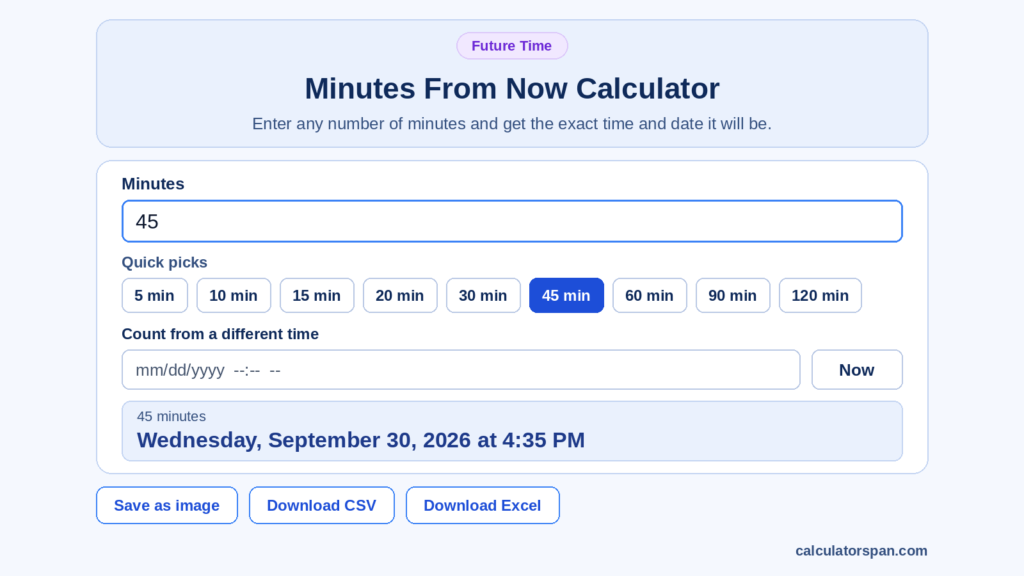
How to Use the Minutes From Now Calculator
There’s one input field, labeled Minutes. You enter minutes as a positive number, and the tool counts forward from your starting point. There’s no submit button; the tool is built to auto-calculate, so results update instantly on every input change.
If you’d rather not type, the Quick picks row covers the values people check most: 5, 10, 15, 30, 45, 60, 90, and 120 minutes, plus 20 minutes from now. One tap loads any specified number of minutes, and changing it later makes the tool recalculate right away.
By default, each calculation starts from the latest time on your device. The Count from a different time field lets you set any other date and time as the starting point instead. For example, you can plan the end time of an exam that starts at 9:00 AM tomorrow and runs 45 minutes. Press Now to switch back to the present.
The outputs start with the result card. It shows the minutes you entered, with the answer underneath as one line: day of the week, full date, and exact time in 12-hour format, such as “Wednesday, September 30, 2026 at 4:21 PM.” That single line makes it obvious whether the time and date fall today, tomorrow, or further into the future.
If you need a record, the export buttons do the work. Save as image grabs the result for a quick message, and Download CSV or Download Excel drops it into a spreadsheet. I’ve seen shift planners and teachers use this to log times instead of copying them by hand.
Large numbers work too, but for multi-hour values the Hours From Now Calculator is easier to read. For everyday cases, like a flight gate check against travel time or running behind schedule, you add the number of minutes and read the result as the future time you’ll actually arrive.
Practical / Common Uses
A cooking timer counts down, which helps until someone asks when dinner will be ready. Cooking and baking come down to a finish time. The oven goes on, the tray needs 90 minutes, and you want a wall-clock time, not a countdown. Cooking timers tell you how long; this tool tells you when. If you want an alarm too, pair it with our Countdown Timer.
Meeting math works the same way. A call at 3:00 PM that runs 45 minutes ends at 3:45 PM. The harder part is meeting prep, where a short buffer, the call, and a drive across town all stack up.
Travel is where time addition gets messy. Leave in 20 minutes with 40 minutes of travel time, and your arrival time is an hour out. For full trips built around departure times, the Arrival Time Calculator is the better tool. The same logic applies to flight estimates when you’re running behind schedule.
Smaller, everyday cases add up too:
- Async messaging: telling a team you’ll be online at 4:10 is clearer than “in 25 minutes.”
- Fitness: workout intervals and rest periods between sets are measured in minutes, not hours.
- Classrooms: teachers set a test end time before an exam begins.
- Health: medication scheduling for short gaps, like a 30-minute wait before eating, is easier with a fixed clock time.
Crossing Midnight and AM/PM
Minute-level math crosses midnight more often than people expect. At 11:50 PM, adding 25 minutes gives 12:15 AM. In one step, you’ve crossed the AM/PM divide, had to switch labels, and triggered a rollover to the following day.
A good calculator shows the new date for you. Night-shift staff run into this constantly, because a short task started before midnight finishes in the AM of a different date. Across several days, trust the output over your intuition.
Time-Zone Considerations
Results are local by default, based on your device, and the tool doesn’t handle zone conversion. For cross-time-zone calls with someone in another zone, use a time-zone converter as a second step. DST changes rarely matter within one day. The exception is when your minutes straddle a daylight-saving transition on changeover night, which the FAQ below covers. Everything else stays local.
How to Add Minutes Manually
I still think everyone should know how to add minutes by hand, if only to catch a wrong answer. Three rules cover it:
- An hour holds 60 minutes.
- A day splits into two blocks of 12 hours: AM before noon and PM after.
- The 24-hour clock, also called military time, numbers hours 00 to 23 and drops the labels.
If your figure starts in hours, convert hours to minutes first. For adding durations rather than clock times, the Time Calculator is the better fit.
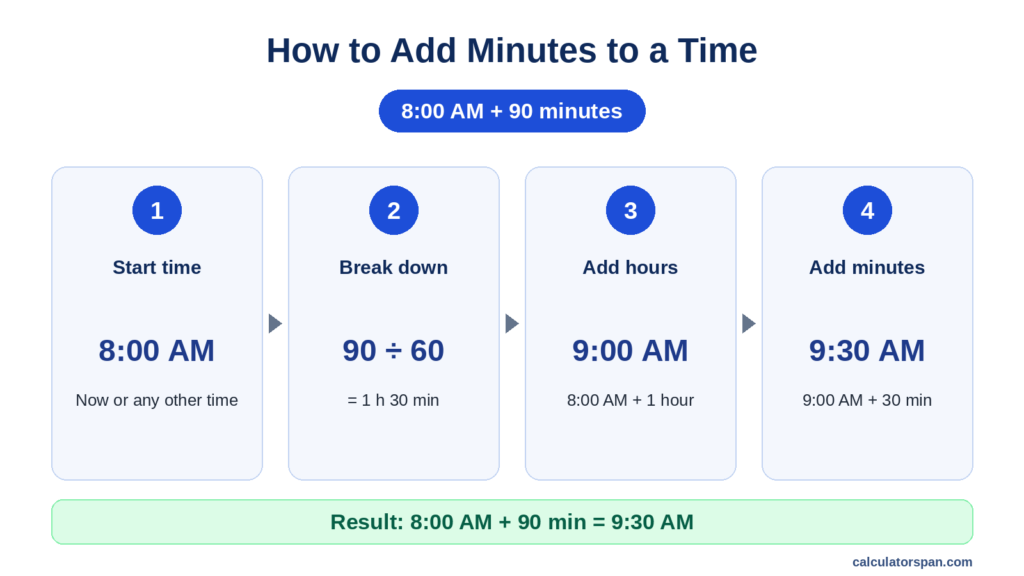
Step One: Determine the Start Time
Identify your start time. It can be right now or any other time, such as an 8:00 AM meeting you’re planning your morning around.
Step Two: Break Down the Minutes Into Hours and Minutes
Break down the total. Divide the minutes by 60 to get hours, and the remainder is your extra minutes. For example, 90 ÷ 60 gives 1 hour 30 minutes.
Step Three: Add Hours to the Starting Time
Add hours to the starting time first. 8:00 AM plus 1 hour is 9:00 AM. Handling hours before minutes keeps the arithmetic tidy and cuts down on carry errors.
Step Four: Add Minutes to the Starting Time
Finish with the remaining minutes. 9:00 AM plus 30 minutes lands on 9:30 AM. If the minutes push past 60, roll the extra into the next hour.
For totals past two hours, such as 150 or 300 minutes, the Hours From Now Calculator gives a clearer answer.
Worked Examples / Reference Tables
A static table covering 1 to 50 minutes goes stale as soon as it’s published, since every date and time depends on when the page loads. Fixed-start examples hold up better. These assume a start of 14:30:
| Add | Result |
| 5 min | 14:35, same day |
| 10 min | 14:40, same day |
| 15 min | 14:45, same day |
| 20 min | 14:50, same day |
| 25 min | 14:55, same day |
| 45 min | 15:15, same day |
| 90 min | 16:00, same day |
Three 12-hour examples cover the tricky cases:
- 8:00 AM + 90 minutes = 9:30 AM
- 11:00 AM + 150 minutes = 1:30 PM (13:30)
- 11:30 PM + 120 minutes = 1:30 AM the next day
Frequently Asked Question
What Time Zone Does It Use?
Whatever your device is set to. If you just landed somewhere and your phone hasn’t caught up, it may still be on the old zone. The result will follow that old setting, not your actual local time.
Does It Handle Daylight-Saving Transitions?
Yes. For minute-level math, it only matters if your minutes cross the changeover. On spring-forward night, adding 30 minutes at 1:45 AM gives 3:15 AM, because the clock jumps an hour at the switch. Your browser applies the DST change, so the duration stays exactly the number of minutes you entered, even when the clock labels shift.
Can I Go Backward in Time?
No. This tool only counts forward, so a negative number like −60 won’t tell you what the clock read an hour ago. For past times, open the Hours Ago Calculator, set Hours to 0, and enter your minutes in the Minutes field. It has the same Count from a different time option, so it works the same way.
How Precise Is the “Now” Moment?
The result is shown to the minute. The tool counts from the exact moment you calculate, so entering 10 at 3:14 PM returns 3:24 PM. If you’ve left the page open for a while, press Now to refresh the starting point.
Is My Time Zone or Current Time Sent Anywhere?
No. The math runs in your browser. No minutes, times, or zone data go to a server.